Computing Measurements for Multi-ROIs
You can compute measurements of the discrete objects within a multi-ROI, add random classes and labels, and cross-index classes to another multi-ROI in the Compute Measurements dialog, shown below.
Right-click the multi-ROI to which you want to add scalar values and then choose Compute Measurements in the pop-up menu to open the Compute Measurements dialog, shown below.
Compute Measurements dialog
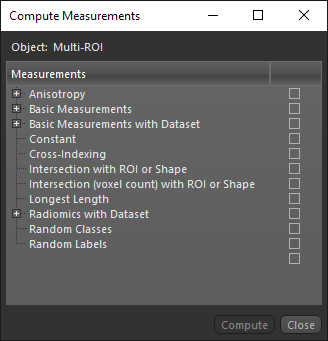
- Right-click the multi-ROI to which you want to add scalar data and then choose Compute Measurements in the pop-up menu.
The Compute Measurements dialog appears.
- Select the measurement(s) and other values that you want to add to the selected multi-ROI, as well as any other requirement(s). See Measurements and Scalar Data for Multi-ROIs for information about the available measurements and scalar data for multi-ROIs.
- Click Compute.
The computed measurements and other values are selectable in the Scalar information box and the values for each class can be viewed in the Classes and scalar information box (see Classes and Scalar Information). You can also analyze the histogram of the scalar values, as well as export and import scalar values from CSV files.
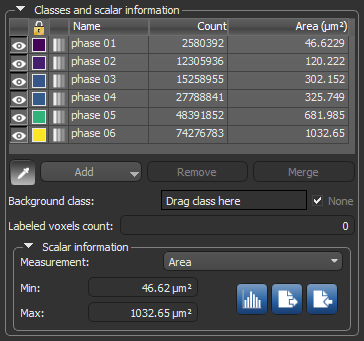
Note You can examine multi-ROIs that include scalar values in the Measurement Inspector (see Examining Multi-ROIs with the Measurement Inspector).
Note You can import computed measurements and scalar data into the Analyze and Classify Measurements module to categorize objects according to different criteria, apply arithmetic operations to the data, add cross-reference measurements, and more (see Analyzing and Classifying Measurements).
